Fast User Switcher (FUS) for Jira
Fast User Switcher
Overview
- Log in as any user into the system to investigate issues, make changes on behalf of some user.
- Use 'su' keyword at any page or blog post to access the app FUS.
- Track FUS usage statistics with Audit Log - Who\When\Which User.
Configuration
- To install FUS, go to Manage apps find Fast User Switcher (FUS) for Jira applications:

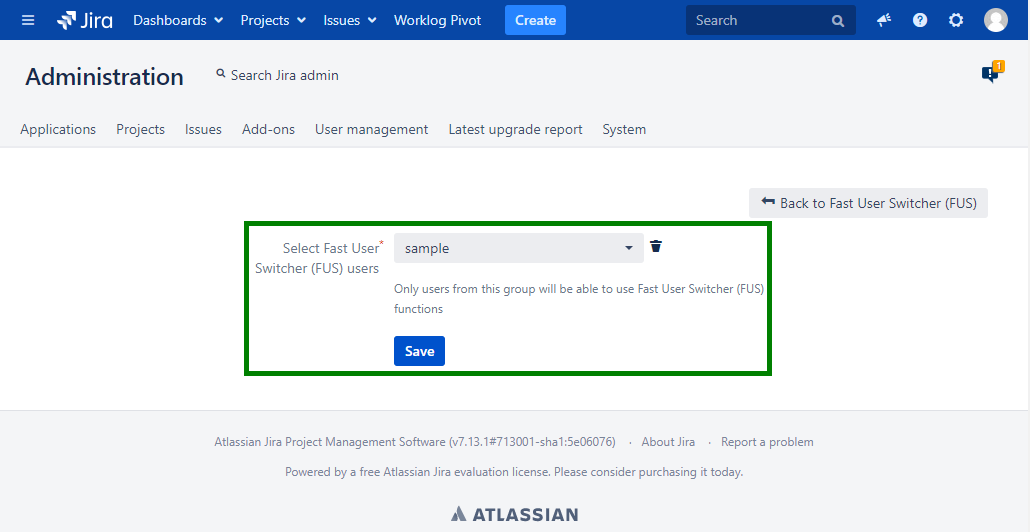
- To configure FUS, go to Administration - User management - click on "Configuration"
- On the FUS configuration page you can choose a user group who will be able to use FUS functions
Use cases
You have special users to make review and changes in JIRA tasks (moderator) and you do not want to share user passwords. You can use FUS to switch to this user and make changes on behalf of him.
Your teammate cannot see some pages, but permissions look like everything should work fine. You can log in as a teammate's user to investigate an issue.
User guide
How to switch user session with FUS
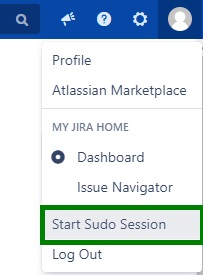
- To start a session with any other user use hotkey 'su', or click on user menu link, in the top right corner, and select "Start Sudo Session"
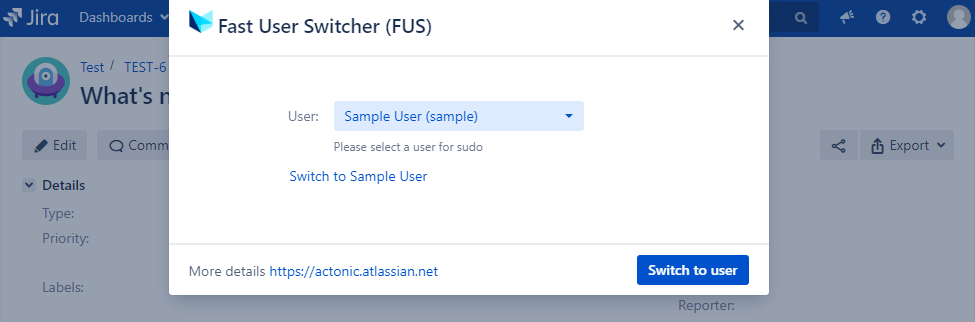
- Type a username from which you want to start a session and click on "Switch to user" button
- Now you can start work on behalf of that user

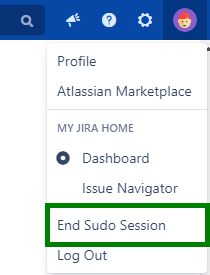
- To end session after finishing the work click on the button "End Sudo Session"
Review FUS actions with Audit Log
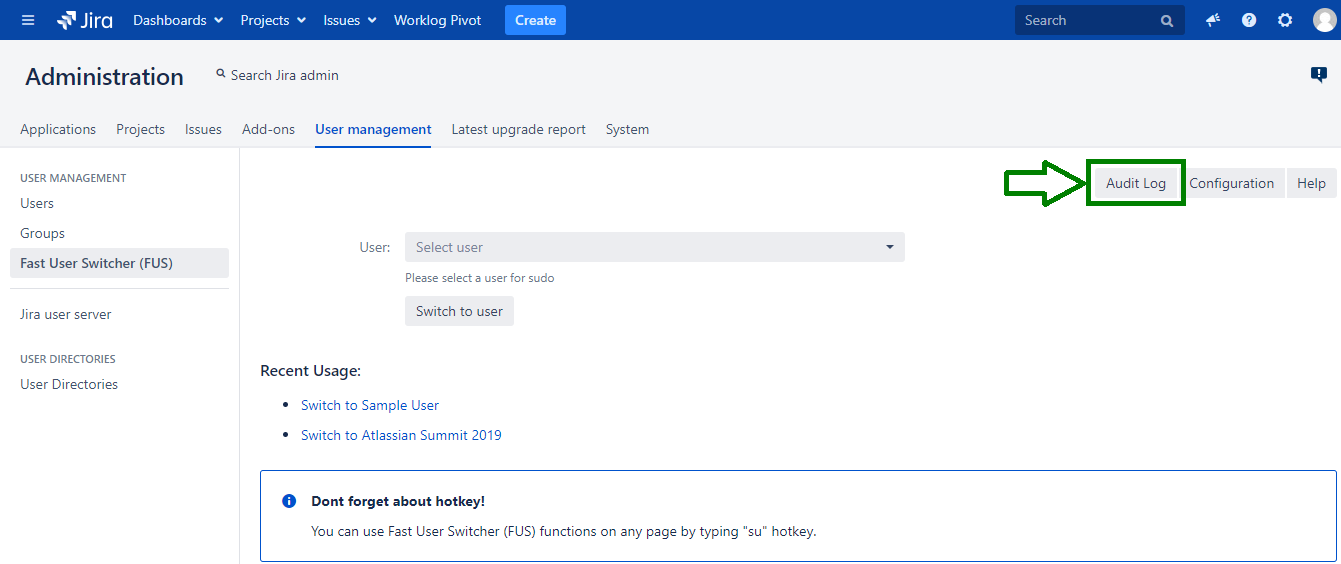
- To track FUS usage statistics with Audit Log go to Administration - User management - Fast User Switcher (FUS) and click on "Audit Log"
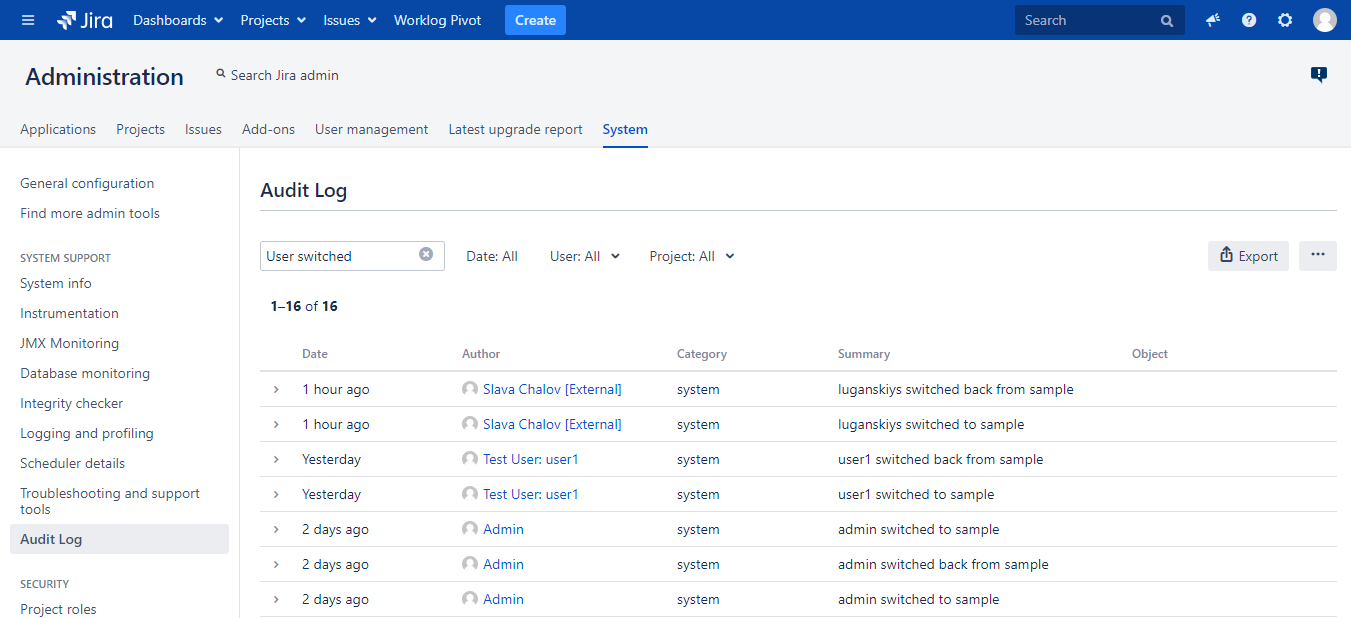
- Review your FUS activities
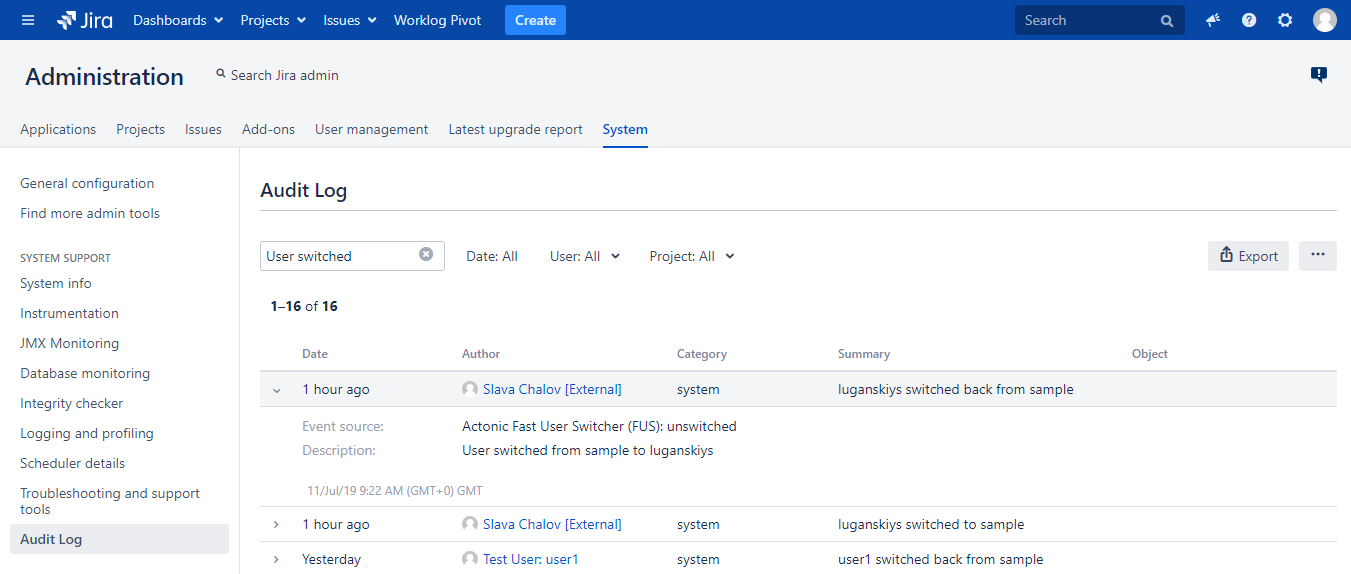
- Click on row to view more information about the events
, multiple selections available,